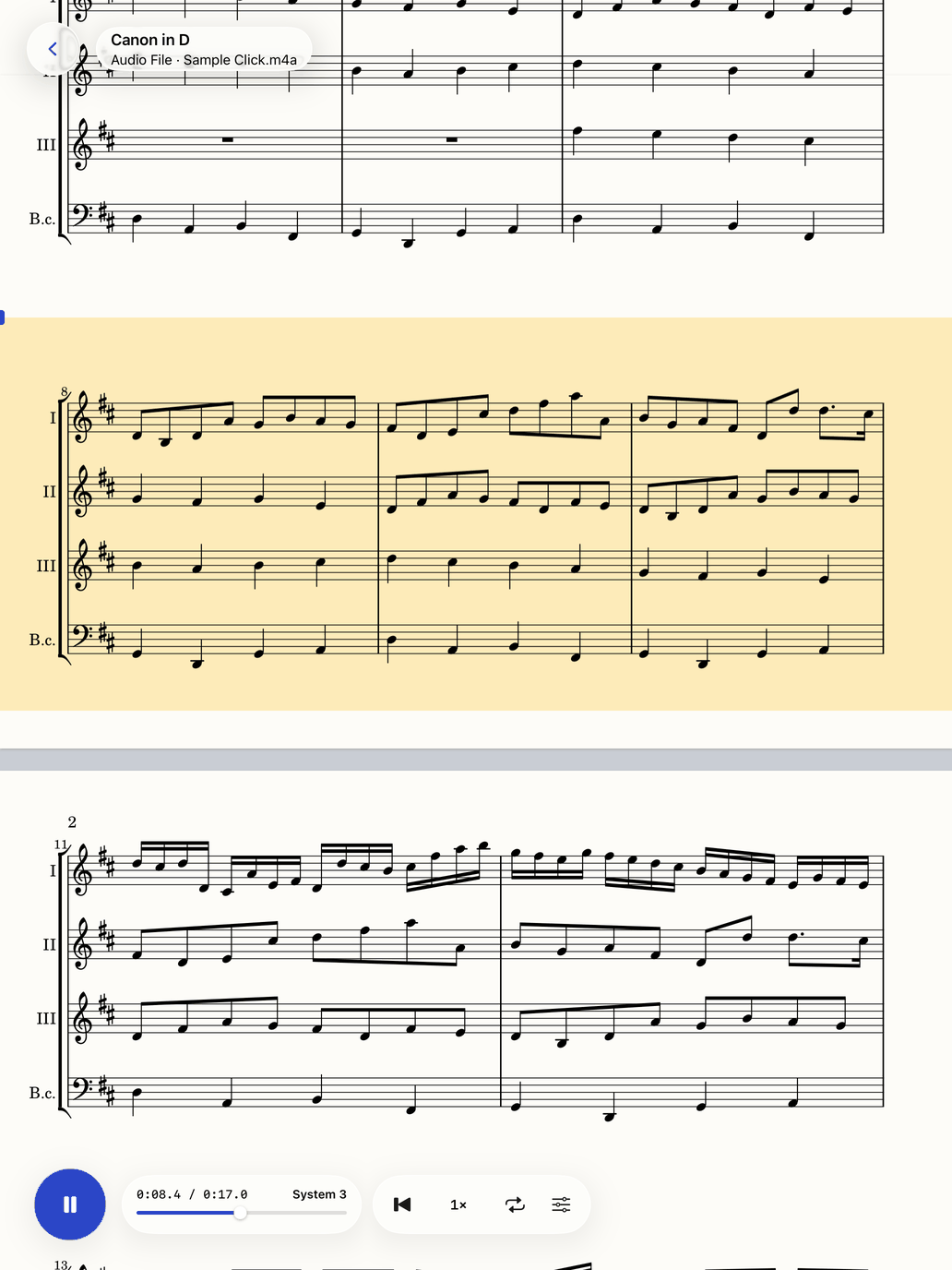
Band rehearsal
Guitar or bass with the original recording
Read your band score or tab while playing along with the original on Apple Music.
 ScoreGlide
The score follows the song, system by system.
ScoreGlide is an app for iPad and Mac that moves your own sheet-music PDFs — band scores, guitar tab, piano scores and more — along with the playback position of songs on Apple Music (subscription required) or your own audio files. You set the timing yourself: while listening to the song once, you tap (on a Mac, click) where each system begins. After that, you can practise without stopping to turn pages.
Download on the App Store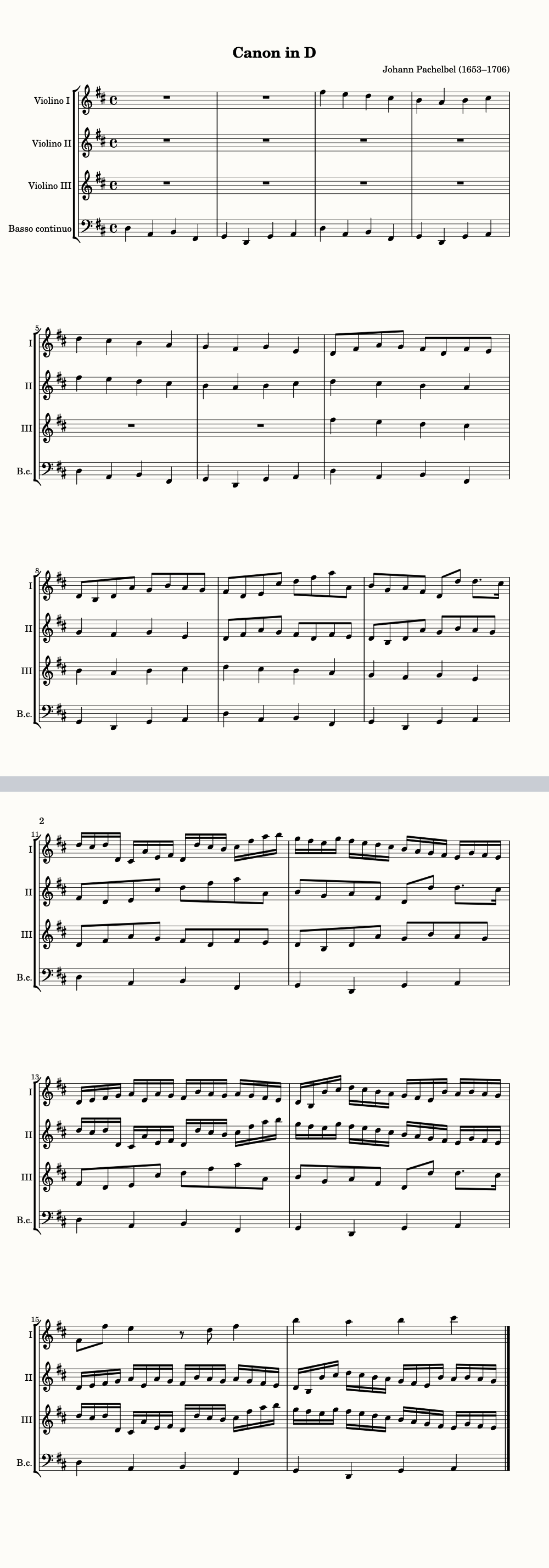
When you practise
The song keeps going while you turn.
Guitar, piano or drums: your hands are already playing.
Practising one passage again and again sends you back and forth through the pages.
With ScoreGlide, the score follows the song.
Tap the start of each system once, and every time you play, the system you are on moves to your reading line. Loop back, and the score goes back too.
How it works
While listening to the song once, you tap at the start of each system. Each tap's time is tied to a system. When you play, the next system glides to your reading line as the song reaches that time.
Song playback position
Systems of the score (tied to the tapped times)
Systems you skip are estimated from the ones around them, and you can correct any that are off.
Because it follows the playback position, you never set a tempo or a scrolling speed.
Each system moves at the time you tapped, not by a tempo number, so rubato follows your taps.
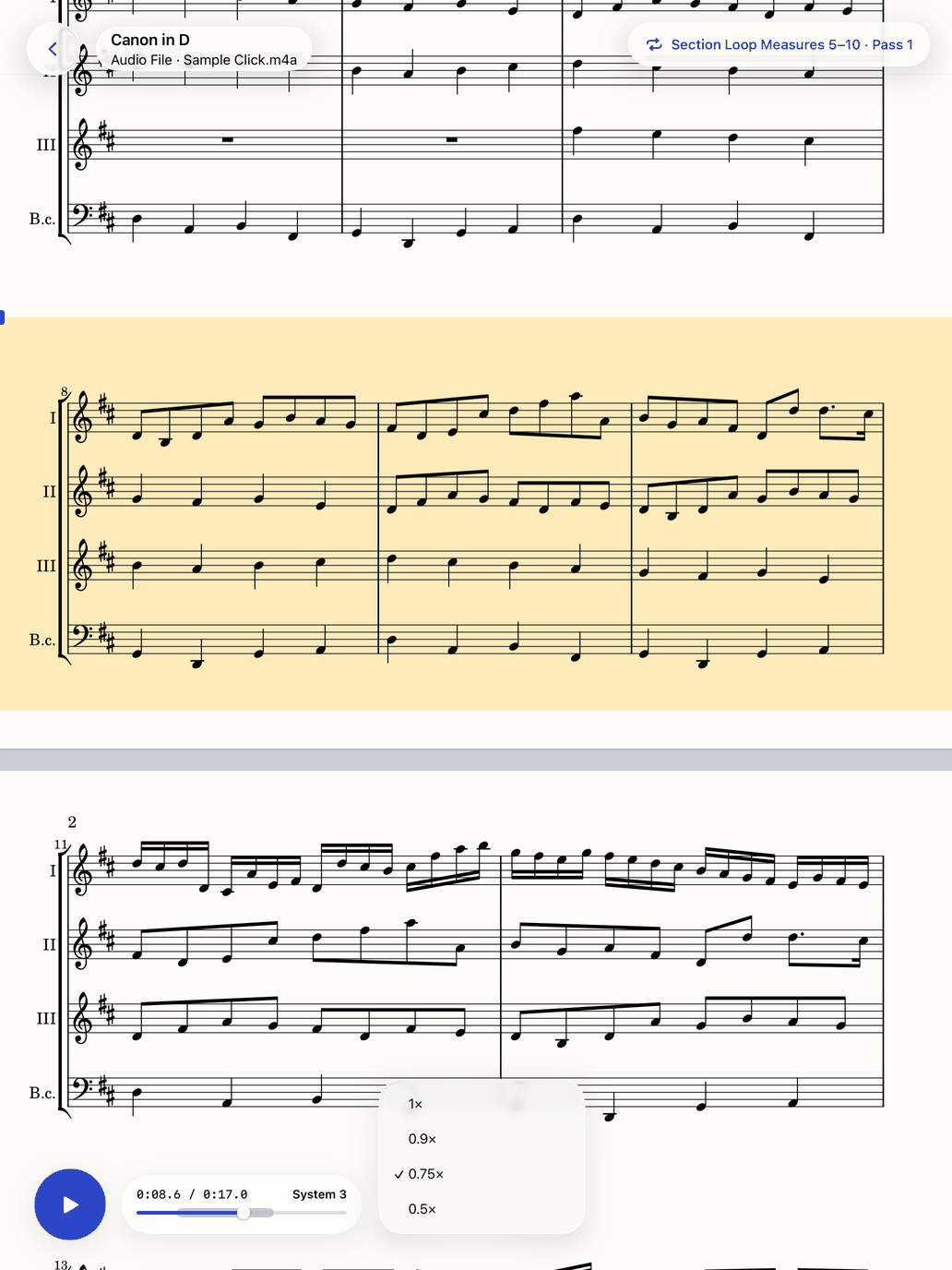
It follows the playback position, so at a slower speed or in a loop the score stays with the song.
How to use
Check the systems the app finds, and fix them if needed.
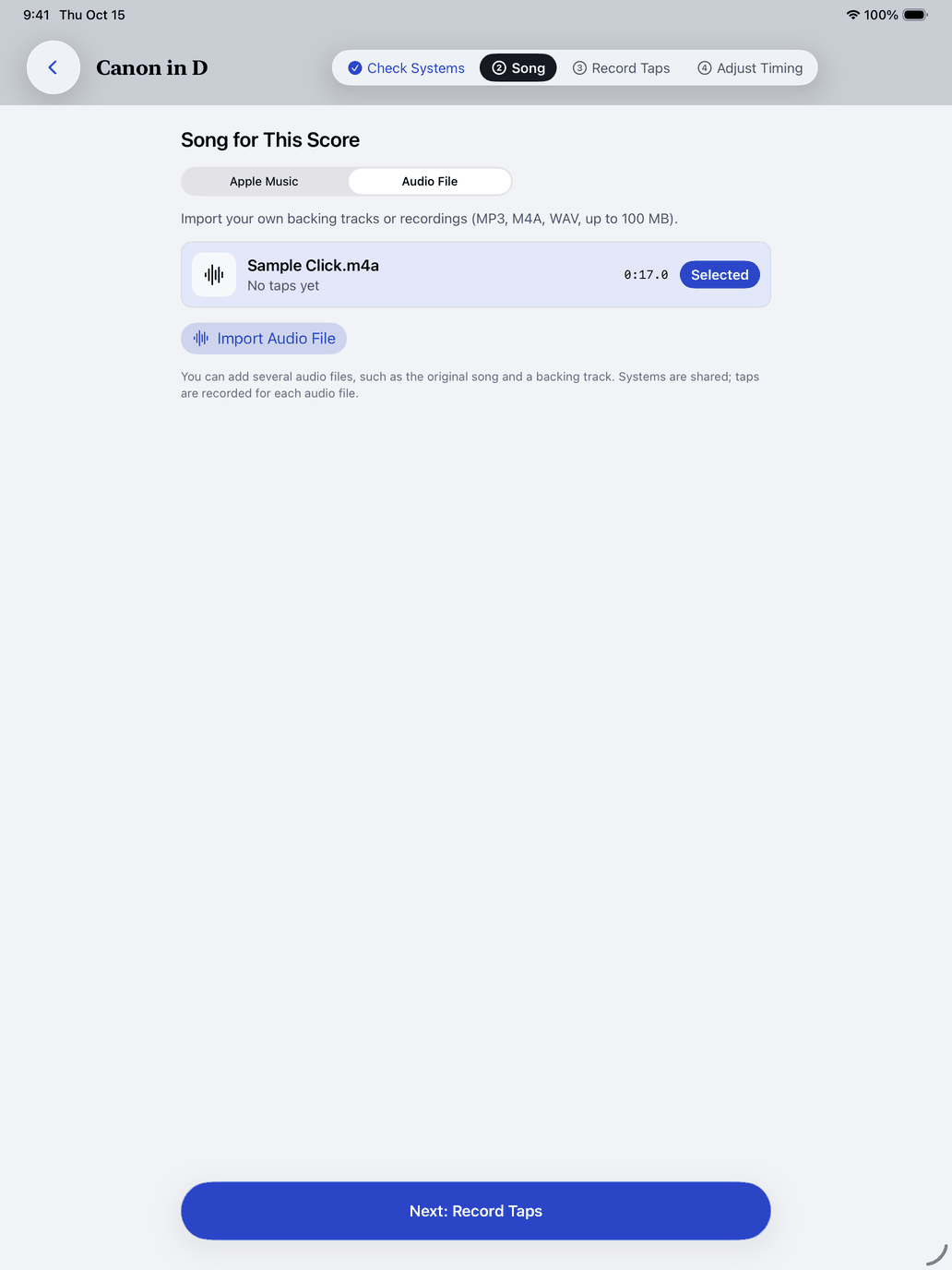
A song on Apple Music or your own audio file.
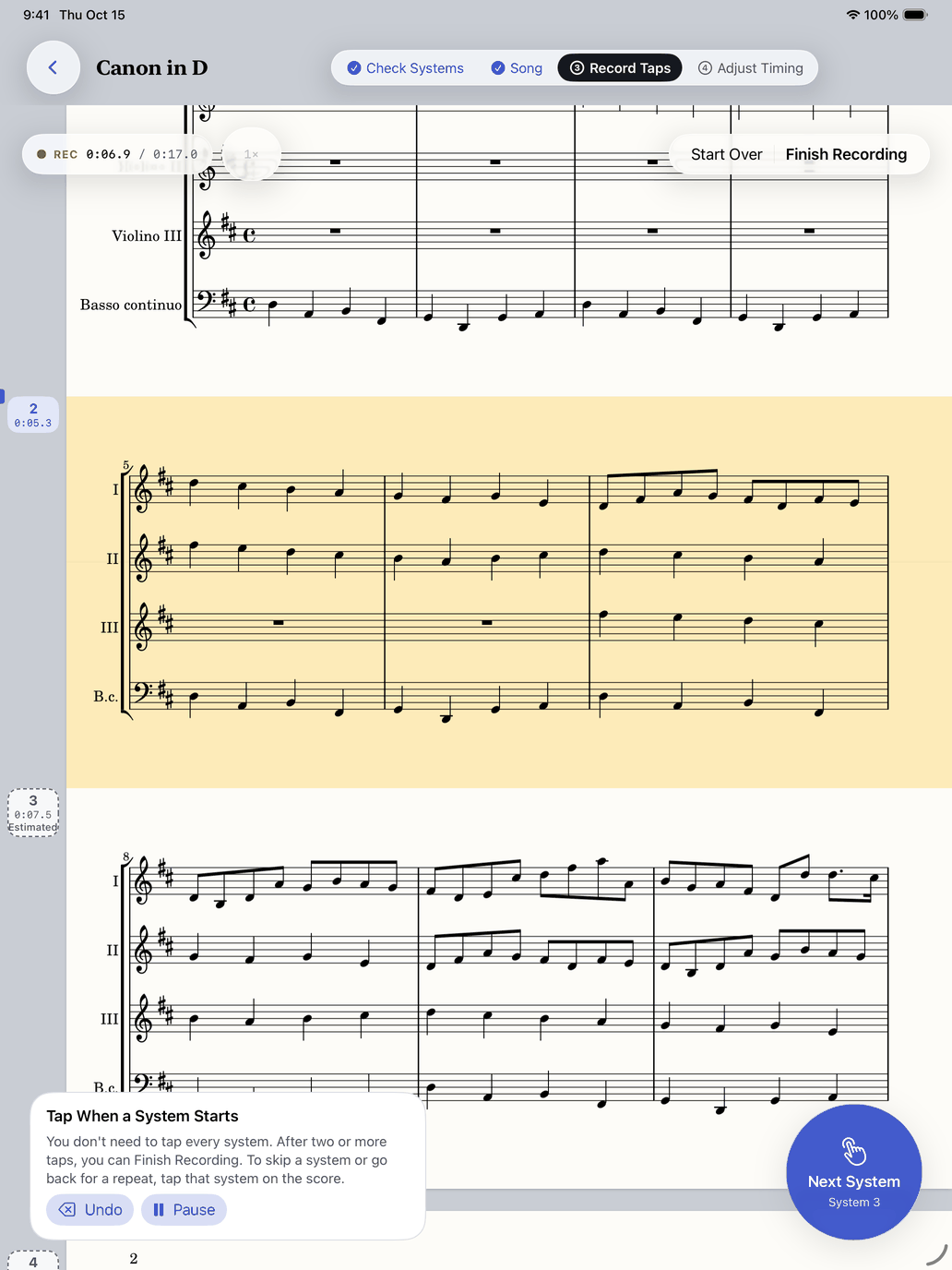
While listening once. Not every system needs a tap.
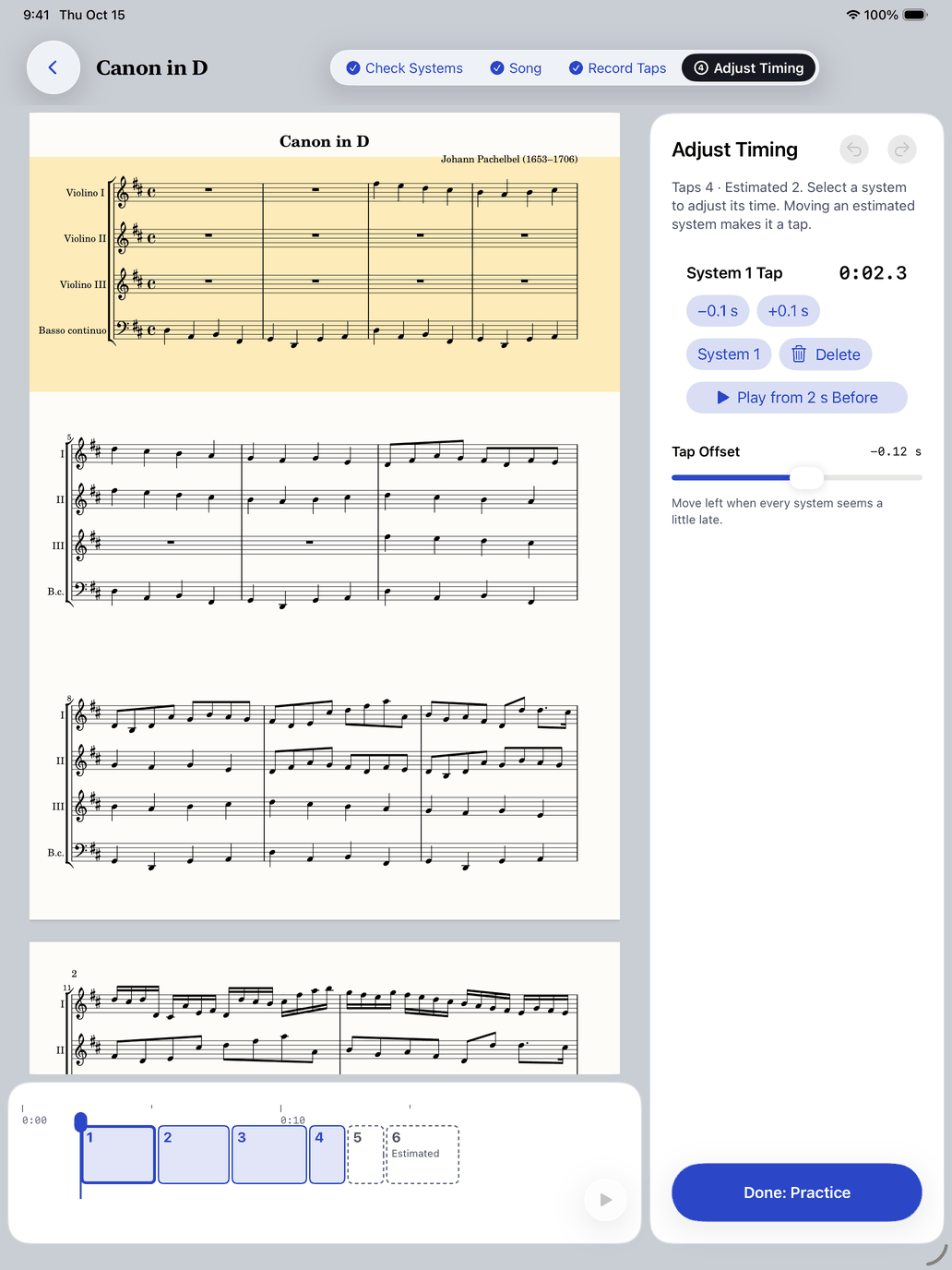
Press play and the score moves system by system. Fix any timing that is off.
Try it with the sample score and audio that come with the app, before you set up your own.
Download on the App StoreMade for practice like this
Play the whole piece without taking your hands off your instrument.
Band rehearsal
Read your band score or tab while playing along with the original on Apple Music.
Recital preparation
With your own accompaniment or practice track. Slow it down without changing the pitch.
Before the show
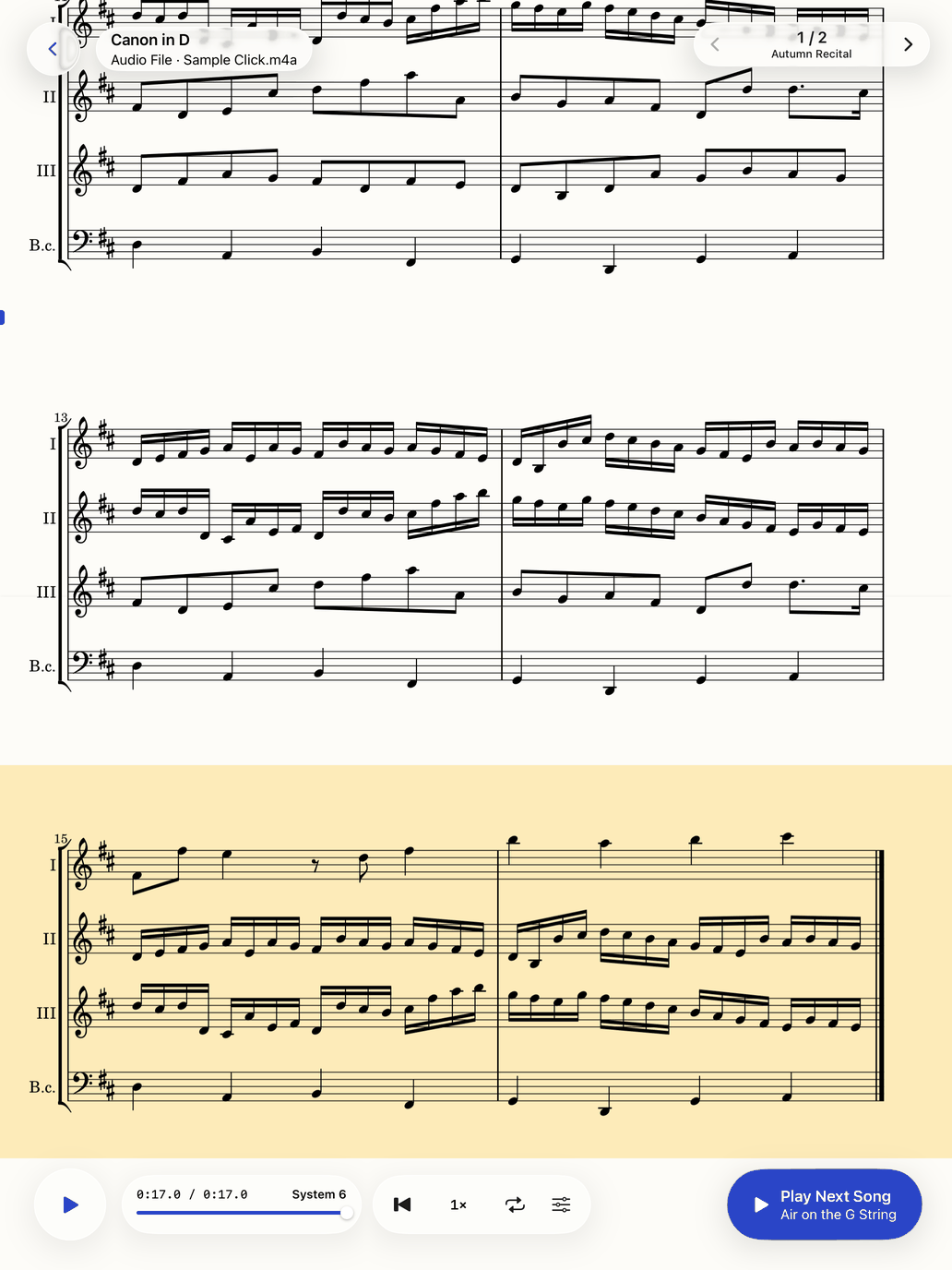
Line up your scores in the order of the show; when a song ends, "Play Next Song".
The score in the screens is Pachelbel's Canon, engraved as a sample. The audio is the sample click track that comes with the app. Screens shown are from iPad. On a Mac the layout differs slightly.
Practice features
Put your scores in order and practise them one after another. When a song ends, "Play Next Song" opens the next score and starts it.
One setlist is free. More setlists come with ScoreGlide Pro.
Press the pencil to write fingerings, chords or reminders with Apple Pencil or a finger. A ScoreGlide Pro feature.
Start again from where you stopped.
While paused, touch and hold a system to play from there.
Scores, audio files, timings and setlists sync through iCloud between iPad and Mac devices signed in to the same Apple Account. Notes sync between iPad devices.
Peace of mind
There are no ads, in practice or anywhere else in the app.
Start right away, without creating a ScoreGlide account.
Your scores and audio are stored on your iPad or Mac and in your iCloud. Purchases are handled by Apple. Privacy Policy
They play through Apple's system. The app does not save or analyse their audio.
Optional support for the developer’s work is welcome. It does not change what the app does, and it is separate from, and not a substitute for, purchases in the app.
FAQ
Yes, when you play along with a song. It doesn't listen to the music: the score moves with the timing you record yourself by tapping. Import a PDF score, choose a song (on Apple Music or your own audio file), and tap (on a Mac, click) where each system begins while you listen once. After that, press play and the score moves system by system to your reading line, so you don't turn pages by hand or foot while you play. The score moves only while the song is playing in ScoreGlide.
It doesn't listen to the music. You record where each system begins by tapping while you listen. Systems you skip are estimated, and you can correct the timing later. After that, the score moves system by system with the playback.
In the library, choose "Import PDF" and pick a PDF saved on your iPad or Mac, or in iCloud. For a paper score, scan it to a PDF first. For a password-protected PDF, you enter the password when you import it.
PDF scores — band scores, tab, piano scores and more — that are laid out in systems (staves or tab lines that belong together). After importing, you check where the systems are. Digital sheet music you receive as a PDF file can be imported too. Scores that can only be viewed in a seller's app or in special software can't be used. Use scores you bought within the seller's terms of use.
Yes. On a page where no systems are found, you add them by hand with "Add System". Handwritten or poorly scanned scores can take more correcting.
Yes. While recording your taps, tap the system you go back to directly on the score.
Yes. Your own audio files (MP3, M4A, WAV) are enough. To use songs on Apple Music, you need an Apple Music subscription.
iPad with iPadOS 26 or later, and Mac with macOS 26 or later. It is available on the App Store. It is not yet available on the App Store in some countries and regions, such as those in the EU.
On iPad, yes (a ScoreGlide Pro feature). Write fingerings, chords or reminders by hand with Apple Pencil or a finger. There is no typed text, shape or stamp. On the Mac, notes can be neither written nor shown.
Pricing
ScoreGlide has no ads.
| Item | Price |
|---|---|
| Importing scores, tap recording and practice features (other than notes) | Free |
| Setlists | One setlist is free. More with ScoreGlide Pro |
| Writing on scores (iPad) | With ScoreGlide Pro |
| ScoreGlide Pro | A one-time in-app purchase. ¥480 (tax included) |
Practising with songs on Apple Music costs nothing in ScoreGlide (an Apple Music subscription is still needed).
A purchase cannot be canceled or returned once confirmed, except where the law allows it. See the Commercial Disclosure.

Free (in-app purchase available) · No ads. Try it right away with the sample. First, tap the timing once for each song. ScoreGlide for iPad and Mac can be downloaded from the App Store.